
Indonesian Banks for WooCommerce
Accept bank transfer, e-wallet and QRIS payments from Indonesian customers. No transaction fees, no payment gateway to register with, and the money lands in your own account.
Take payments in five minutes, keep every rupiah.
Your customer picks a bank at checkout, sees your account details and a unique payment code, and transfers the exact amount. You confirm it against your statement. No API keys, no merchant onboarding, no settlement delay.
Manual transfer, done properly
Six things that make manual transfer feel a lot less manual.
Commercial, syariah, regional development and digital banks, plus GoPay, OVO, DANA, LinkAja, ShopeePay and static QRIS. Switch one on, add your account number, done.
A small random amount is added to each order total, so two customers buying the same thing transfer different figures. You match transfers to orders at a glance.
Any destination not on the list — a smaller BPD, a cooperative, a second account — becomes a payment method with your own name, logo and instructions.
List every account you hold at a bank. Customers see all of them on the order confirmation, in the email, and in their account area.
One tap copies the account number or the exact amount, so nobody mistypes a digit into their banking app at the moment they are paying you.
Running several stores? Configure one, download the file, import it on the rest. Accounts and payment-code settings travel; each store keeps its own uploaded logos.
The details, everywhere they help
The same account numbers and the same exact amount, from checkout through to the order you verify in wp-admin.
One settings screen
Banks, syariah banks, regional development banks, digital banks, e-wallets and QRIS, each a switch. Turn on what you actually use.
It writes to WooCommerce's own payment settings, so the Payments screen stays in step. Use whichever screen you prefer.
Title, logo, description, accounts, instructions and the order status after checkout — all on one page per method.
At checkout
After the order
In wp-admin
Confirming payments over WhatsApp?
OneClick Chat to Order puts a WhatsApp button across your store, so customers send the transfer receipt in the same chat they ordered from.
See the plugin →Built for how Indonesian stores actually sell
No fees, ever
No per-transaction cut, no monthly fee, no registration with a provider. Money moves from your customer's bank straight to yours.
Nothing leaves your store
No API keys, no third-party service, no account to open anywhere. Order data stays in your own database.
Serving stores since 2018
Version 1.0.0 is a complete rebuild for modern WordPress and WooCommerce. Stores updating from the old release need zero reconfiguration.
Extend it in one line
Payment methods are a filterable registry, so adding a bank from your own code is a single entry — no class to write.
Your bank is never missing
40+ methods ship built in. Anything else, a smaller BPD, a cooperative, a second account, you add yourself in a minute, with your own name and instructions.
One number, everywhere
The amount at checkout is the amount in the email, the account area and the saved order. Nobody has to ask you which figure is the right one.
Ready to take bank transfers?
Install it from your dashboard and switch on the banks you actually use. Five minutes, no registration, no fees.
Get Started
Prefer watching? The setup walkthrough covers install to first order in under ten minutes.
Watch the tutorial video
Most Indonesian online stores do not start with a payment gateway.
They start with a bank account, a WhatsApp number, and a customer who asks “transfer ke mana, kak?”
That works.
It is how an enormous amount of commerce in Indonesia actually happens.
What does not work is doing it by hand inside WooCommerce, pasting account numbers into the order notes, answering the same question forty times a week, and squinting at a bank statement trying to work out which of the three transfers for Rp 150.000 belongs to which order.
Indonesian Banks for WooCommerce closes that gap.
Your customer picks a bank at checkout, sees your account details and an amount that is unique to their order, and transfers it.
You match it against your statement and ship.
No API keys, no merchant onboarding, no KYC paperwork, no settlement delay, and nobody taking a percentage.
The plugin has served Indonesian stores since 2018.
Version 1.0.0 is a complete rebuild for modern WordPress and WooCommerce.
Why manual transfer is still the right answer for a lot of stores
Midtrans, Xendit, Doku and Tripay are good at what they do.
Virtual accounts, dynamic QRIS, automatic verification, settlement infrastructure, none of that is something a plugin can replace, and this one does not pretend to.
What they also involve is registration, business verification, a per-transaction cut, and money that sits with someone else for a day or two before it reaches you.
For a store doing twenty or thirty orders a month, that trade is often a bad one.
The fees are small in absolute terms but constant, the onboarding is a week you do not have, and the settlement delay is working capital you cannot use.
Manual transfer inverts it: the money moves directly from your customer’s bank into yours, you keep all of it, and you can be selling five minutes after activating the plugin.
The honest cost is that you verify payments yourself.
Everything below is about making that cost as small as possible.
Indonesian Banks for WooCommerce: A walkthrough, from installation to a confirmed payment
The Indonesian Banks for WooCommerce plugin is designed to be straightforward to use.
Even someone with no prior WordPress experience can set it up and configure everything they need, all from a single plugin settings page.
Every payment method on one screen
The plugin adds an Indonesian Banks menu to your dashboard.
Everything lives there.
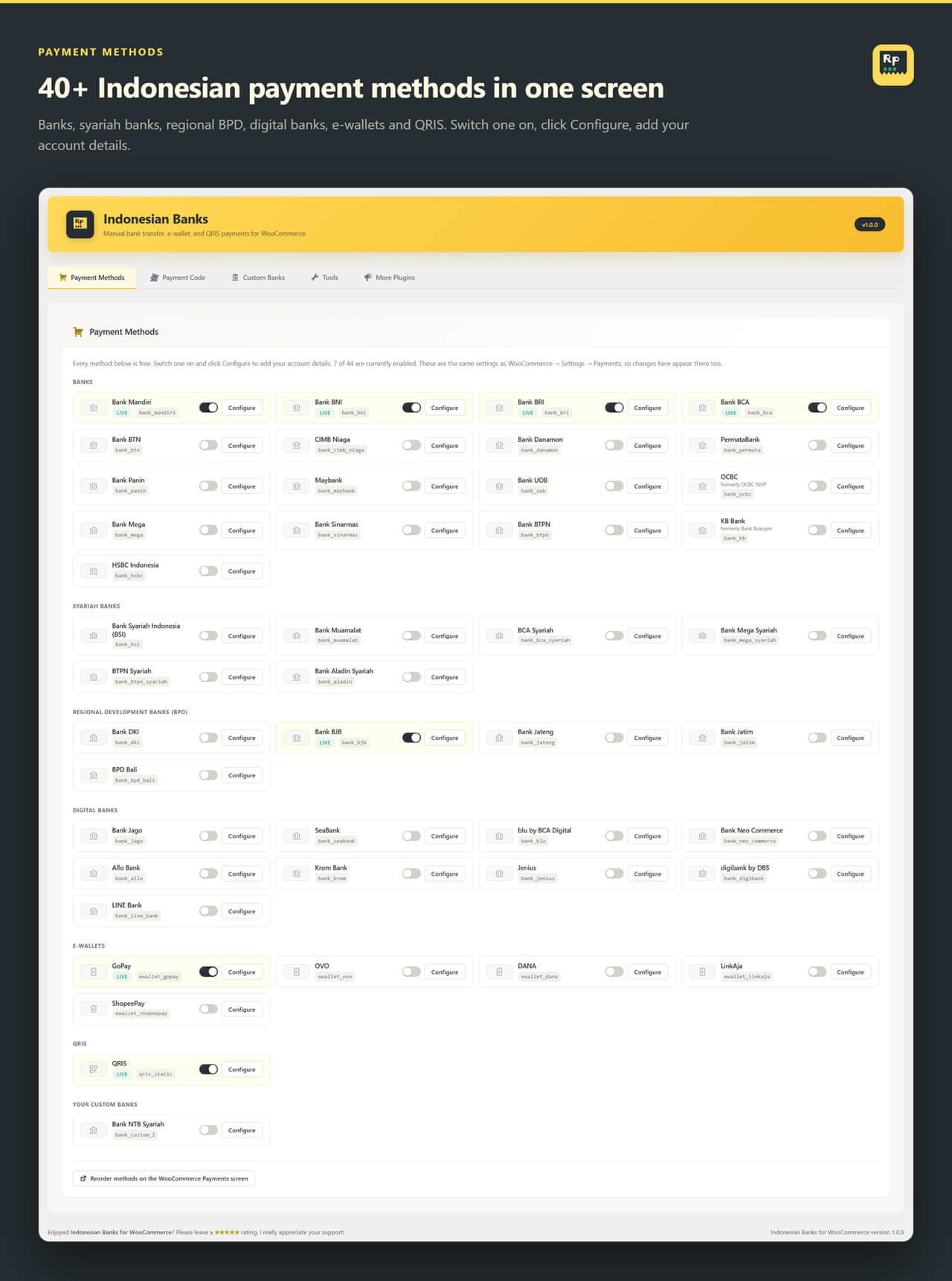
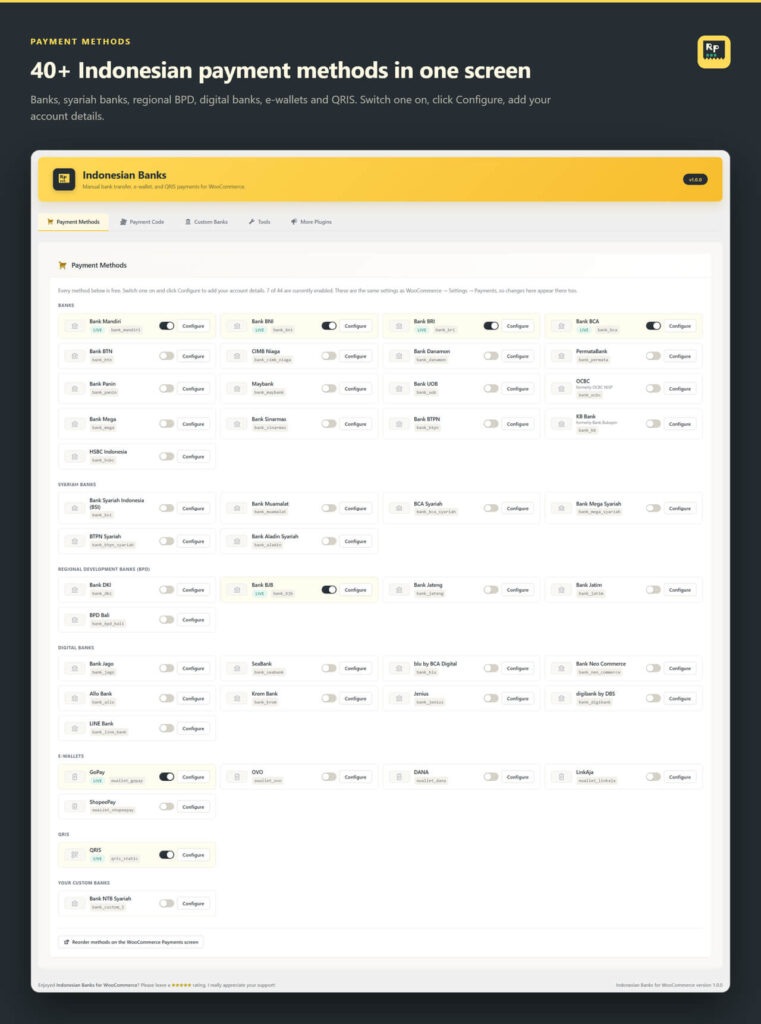
Forty-three methods ship with the plugin, grouped so you can find yours quickly: commercial banks, syariah banks, regional development banks (BPD), digital banks, e-wallets, and static QRIS.
Each one is a switch.
Turn on the two or three you actually use and ignore the rest.
Underneath the built-in list is Your custom banks, anything not included, whether that is a smaller BPD, a cooperative, or a second account you want to present separately, becomes its own payment method with a name you choose.
These are the same settings as WooCommerce → Settings → Payments, not a second copy of them.
Changes made on either screen appear on the other, so you can use whichever you prefer.
Setting up a method
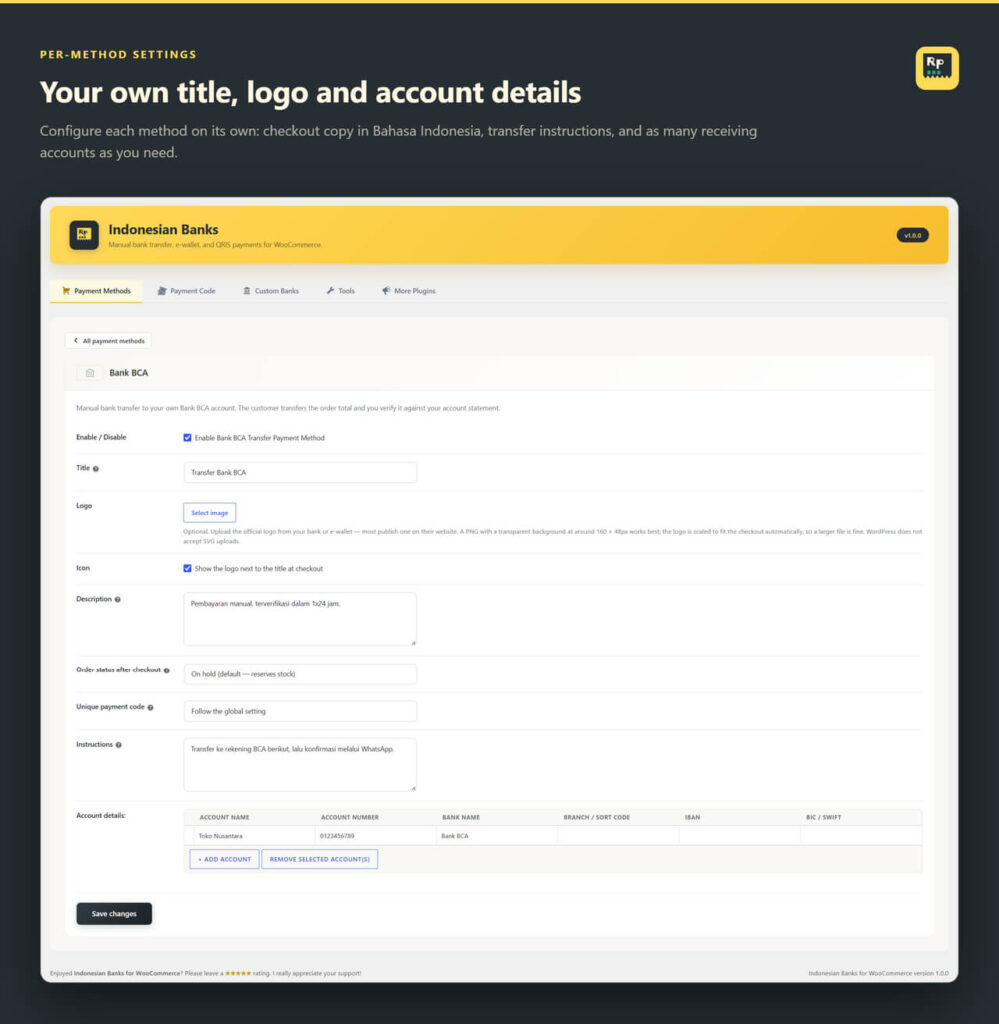
Click Configure on any method and you get one page with everything that method needs.
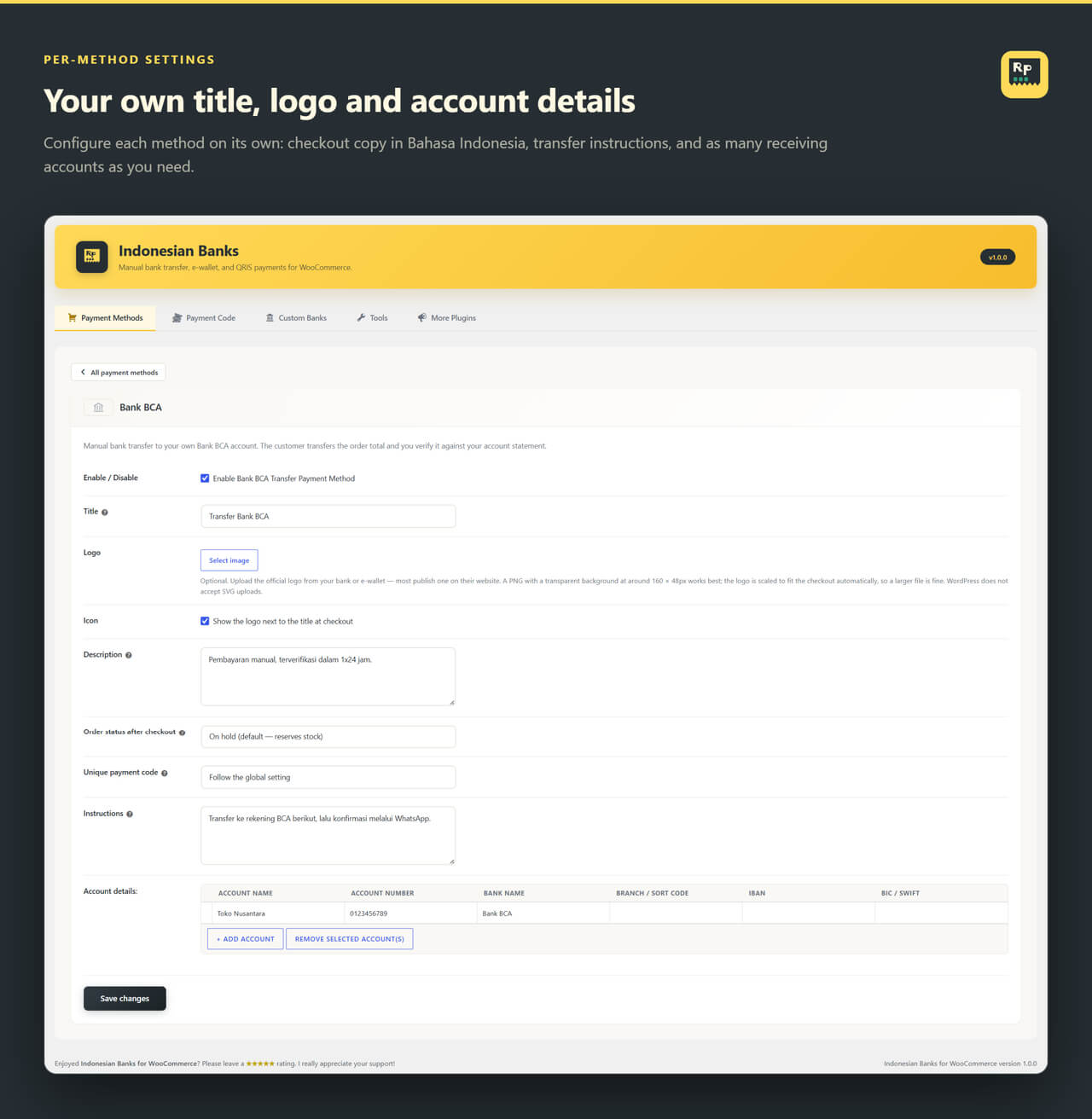
The title is what appears at checkout, Transfer Bank BCA, or whatever wording your customers expect.
The description sits under it, and the instructions appear on the order confirmation and in the email.
Both are plain text fields, so writing them in Bahasa Indonesia is the normal case, not a workaround.
Account details is a table, not a single field. If you hold three accounts at the same bank, list all three; the customer sees all of them and picks whichever is convenient.
Add as many rows as you need.
Two settings worth knowing about. Order status after checkout
decides what happens to the order while you wait, On hold reserves the stock, Pending payment does not.
And Unique payment code lets this one method opt out of the code, or use it even when the global setting is off.
There is also a Logo field.
The plugin ships no bank logos, for a reason worth being straightforward about: bank logos are trademarks, and WordPress.org requires everything bundled inside a plugin to be GPL-licensed, which a bank’s logo cannot be.
So you upload the one your bank publishes on its own website.
As the merchant who actually banks with them, you are on much firmer ground doing that than we would be shipping it to every store in the world.
The unique payment code
This is the part that turns a pile of transfers into something you can reconcile.
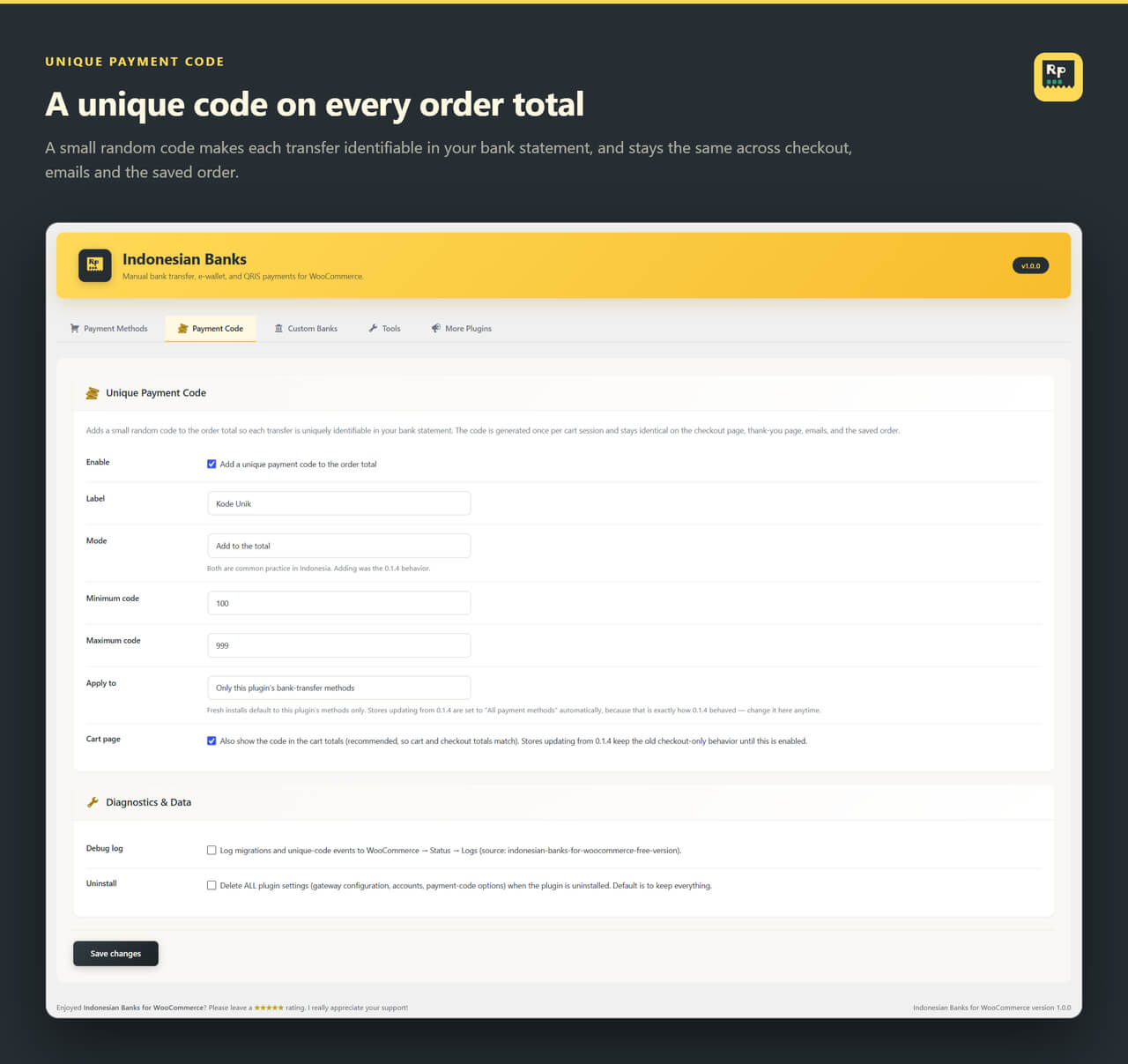
The plugin adds a small random amount to each order total.
Two customers both ordering Rp 150.000 are asked to transfer Rp 150.324 and Rp 150.881.
When those figures land in your statement, you know exactly which order each one belongs to, no guessing, no asking the customer to send a screenshot.
You control the range, the label shown in the totals, and whether the code is added to or subtracted from the total.
Both are common practice in Indonesia.
It can apply to every payment method or only to this plugin’s, and it can show in the cart totals as well as at checkout so the two never disagree.
One detail matters more than it sounds: the code is generated once per cart session and frozen onto the order when it is placed. The checkout page, the confirmation page, the email, the customer’s account area and the admin order screen all show the same number.
In the 2018 version they did not always agree, and that was the single most confusing bug the plugin ever had.
It is fixed.
What the customer sees
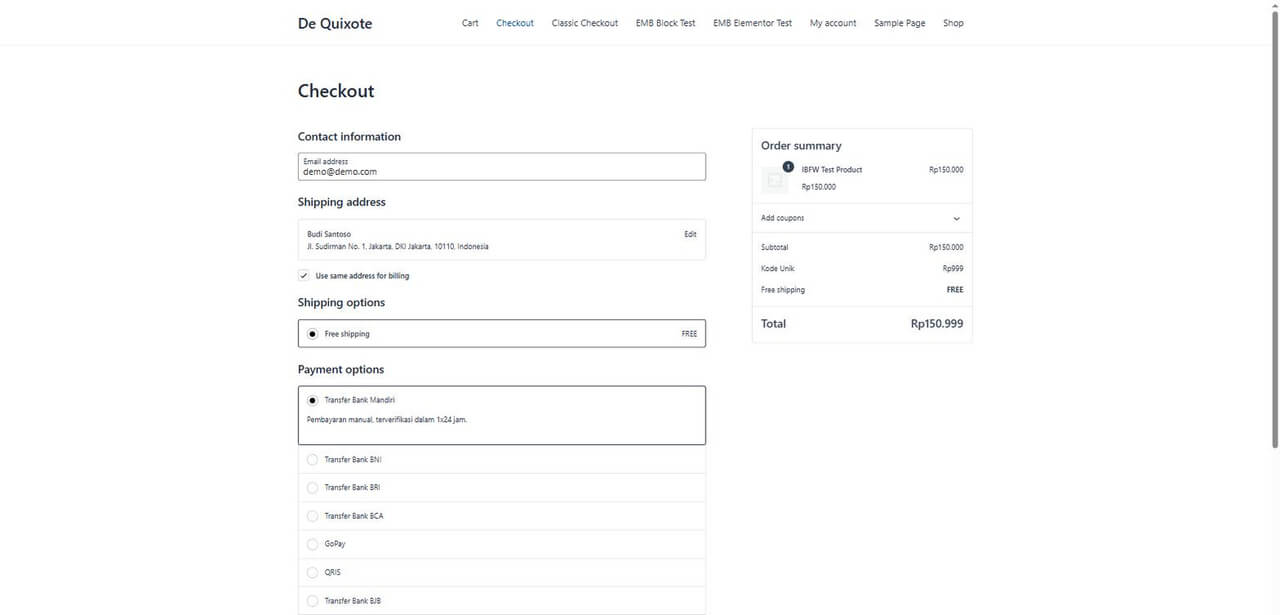
Your enabled methods appear at checkout in the order you arrange them, each with its title, description and logo.
The unique code shows as its own line in the order summary, labelled whatever you called it, Kode Unik by default, so the total the customer sees is the total they are asked to transfer.
This works on both the modern Checkout block and the classic [woocommerce_checkout] shortcode.
If your theme still uses the shortcode, nothing here is degraded.
After the order
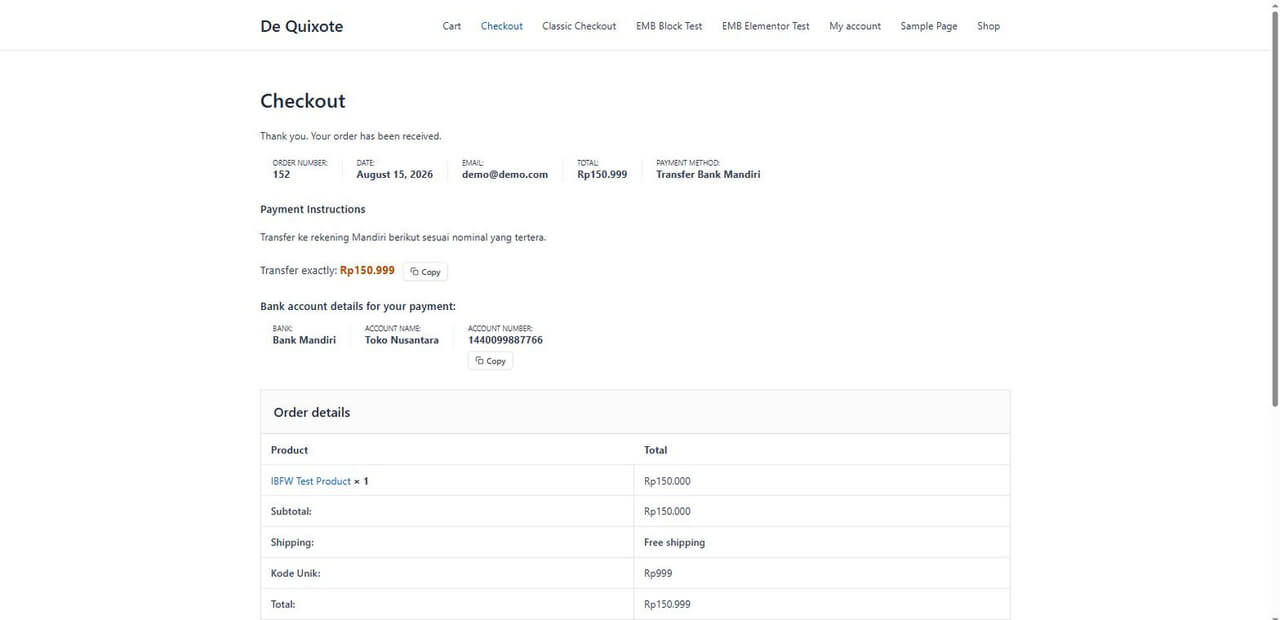
The order confirmation carries your instructions, the exact amount, and your account details.
The Copy buttons matter more than they look.
Somebody paying you on a phone is about to retype a sixteen-digit account number into a banking app, and a single wrong digit means a failed transfer and a support message.
One tap copies the number.
Another copies the exact amount.
The same details go out in the order email and stay available under My Account → Orders, so the customer who closes the tab does not have to contact you to get them back.
On your side, the admin order screen shows the bank chosen, the account details, the unique code, and the exact figure you should be looking for in your statement.
If you are already running the old version
Update it.
There is nothing to reconfigure.
Bank Mandiri, BNI and BRI keep their identifiers, their titles, their account details and their instructions.
Your unique payment code settings carry over, including the exact behaviour you have today, a store updating from 0.1.4 keeps the old “apply to all payment methods” behaviour rather than silently changing how checkout works.
New installs get the safer default instead.
Historical orders keep resolving too.
The identifiers stored against orders placed years ago are the same ones the plugin uses now.
Coming from another plugin
If your database still holds settings from Indobe or WooWIB, an import tool appears under Indonesian Banks → Tools and brings the accounts across.
It shows you exactly what it found and what it would change, and imports nothing until you confirm.
Your old plugin’s data is never deleted.
If neither plugin left anything behind, the tool stays out of your way entirely.
Running more than one store
Configure one store, download the configuration file from Tools, and import it on the rest.
Payment methods, account details, custom banks and the payment code settings all travel.
Uploaded logos and QRIS images stay behind, because they live in each store’s own media library, set those once per store.
What it does not do
Worth being clear, so nobody installs it expecting the wrong thing.
It does not connect to a bank API, and it does not verify payments for you.
It presents your account details, makes each transfer identifiable, and puts every number where you and your customer can find it.
Confirming that the money arrived is still something you do.
It also does not hold funds, create virtual accounts, or generate per-order QRIS.
Static QRIS means the image from your own bank or e-wallet app, shown at checkout for the customer to scan.
Getting started
Install WooCommerce, then install this plugin from Plugins → Add New.
Open the Indonesian Banks menu, switch on the banks you use, add your account numbers, and you are taking orders.
There is a full guide in Bahasa Indonesia covering installation, configuring accounts, and turning on the unique payment code.
If something is not working the way you expect, the support forum is the fastest way to reach us.
Questions before you install
What store owners ask before switching their checkout over.
No, and that is the point. It presents your own account details and helps you match incoming transfers. There is no third-party service and nothing to register for.
A small random amount added to the order total. Two customers ordering Rp 150.000 are asked for Rp 150.324 and Rp 150.881, so you can tell instantly which transfer belongs to which order.
Forty-three methods: commercial, syariah, regional development and digital banks, five e-wallets, and static QRIS. Anything missing, you add yourself with the custom bank builder.
Yes. Both the block-based Cart and Checkout and the classic shortcode are fully supported, including the unique payment code in the order summary.
Yes, and it is a real declaration. All order data is read and written through the WooCommerce order API, so it works with High-Performance Order Storage on, off, or in compatibility mode.
Bank logos are trademarks, and WordPress.org requires everything bundled inside a plugin to be GPL-licensed. Every method has a Logo setting where you upload the one your bank publishes.
The payment methods work in any currency. The unique payment code works in whole rupiah, so it stays dormant on non-IDR stores and tells you why.
If Indobe or WooWIB settings are still in your database, an import tool appears and brings the accounts across. It previews every change first and deletes nothing.
No. Gateway identifiers, option keys and order meta are unchanged, so your settings, accounts, instructions and payment code all survive the update untouched.
Something else on your mind? Open a support request