
Configuring marketplace buttons on the External Marketplace Buttons is very easy.
Navigate to EM Buttons → Marketplaces to configure your marketplace buttons.
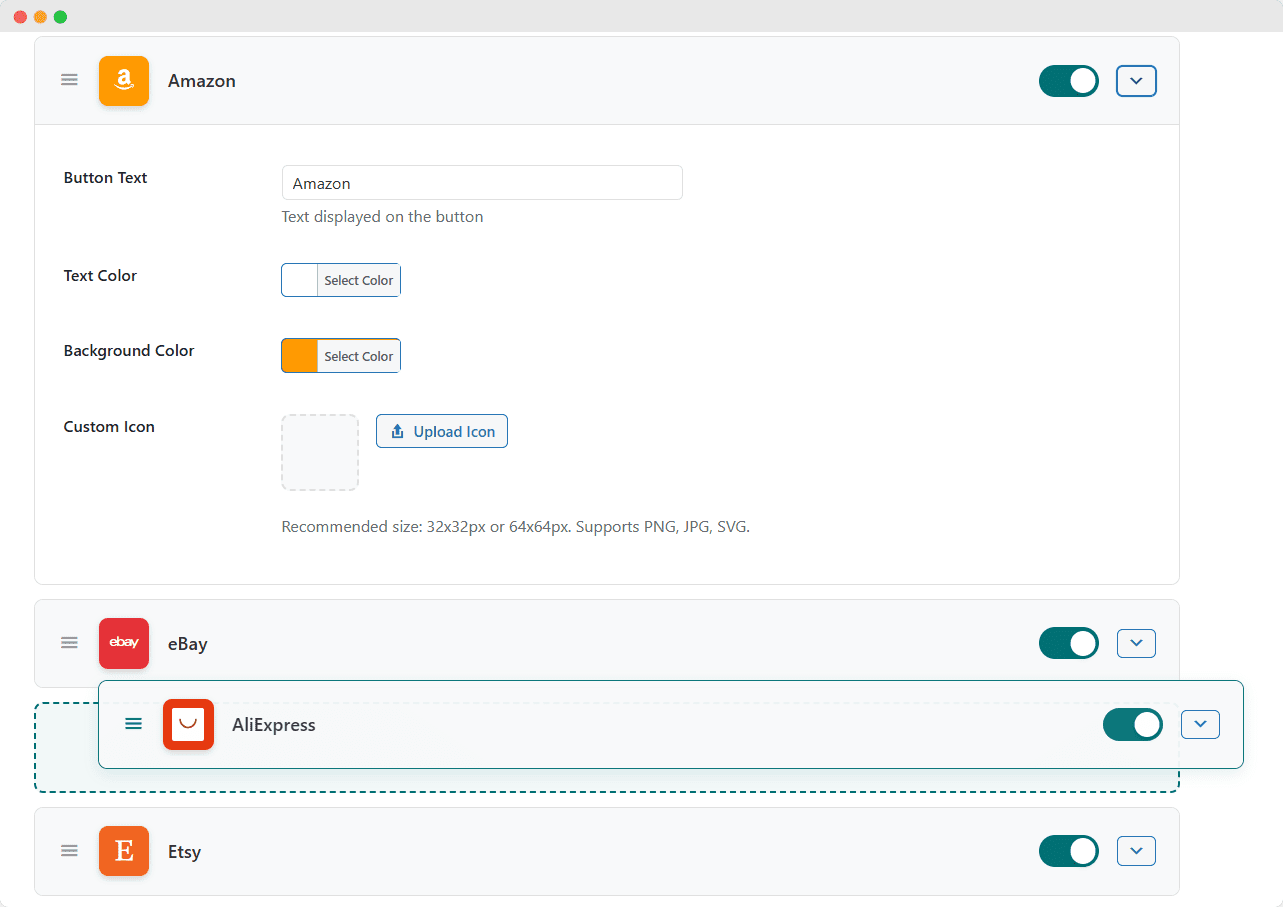
Enabling/Disabling Marketplaces
Each marketplace has a toggle switch:
- ON (Green): Marketplace button will appear on products with URLs
- OFF (Gray): Marketplace is disabled and won’t show
Reordering Marketplaces
- Hover over the marketplace item
- Click and drag the ☰ handle on the left
- Drop in the desired position
- Click Save Marketplace Settings
The order here determines the display order on product pages.
Customizing Individual Marketplaces
Click the ▼ arrow on any marketplace to expand its settings:
Button Text
- Default: Marketplace name (e.g., “Amazon”)
- Custom: Enter any text (e.g., “Buy on Amazon”, “Shop Now”)
Text Color
- Default: White (#ffffff)
- Click the color picker to choose a custom color
- Best practice: Ensure contrast with background color
Background Color
- Default: Marketplace brand color
- Click the color picker to customize
- Tip: Use brand colors for recognition
Custom Icon
- Upload your own icon (PNG, JPG, or SVG)
- Recommended size: 32x32px or 64x64px
- Click Upload Icon to select from Media Library
- Click Remove to revert to default icon
Adding Custom Marketplaces
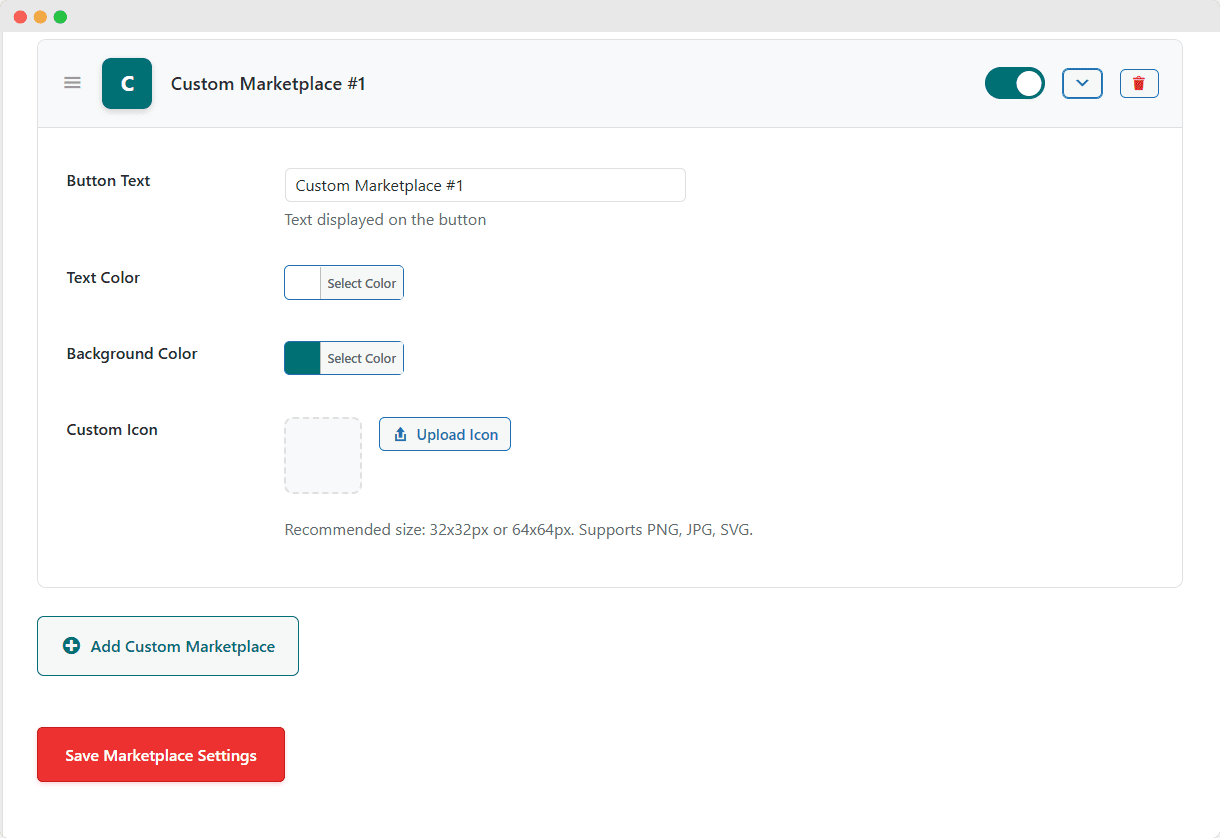
- Scroll to the bottom of the marketplace list
- Click Add Custom Marketplace
- Enter the marketplace name (e.g., “Custom Marketplace #1”)
- Click Add Marketplace
- Configure colors, text, and icon as needed
- Click Save Marketplace Settings
Custom marketplaces are marked with a “Custom” badge and can be deleted using the trash icon.