
Navigate to EM Buttons → Display to configure how buttons appear.
Button Display Settings
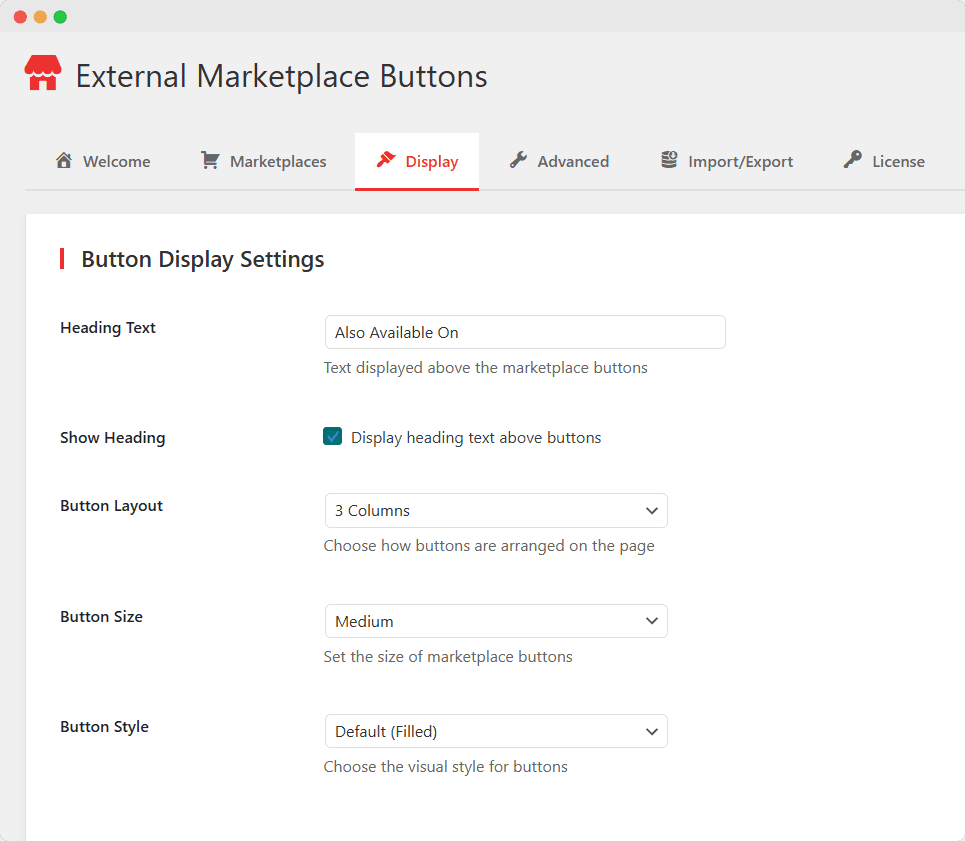
Heading Text
- Text shown above the buttons
- Default: “Also Available On”
- Examples: “Buy Elsewhere”, “Find This Product On”, “Shop On”
Show Heading
- Toggle to show/hide the heading text
- Useful if you want buttons only without a title
Button Layout
| Option | Description |
|---|---|
| 1 Column | Full-width buttons, stacked vertically |
| 2 Columns | Two buttons per row (default) |
| 3 Columns | Three buttons per row |
Button Size
| Size | Best For |
|---|---|
| Small | Compact layouts, sidebars |
| Medium | Standard product pages (default) |
| Large | Prominent call-to-action |
Button Style
| Style | Appearance |
|---|---|
| Default (Filled) | Solid background color with white text |
| Outline | Transparent with colored border, fills on hover |
| Minimal | Text only, no background or border |
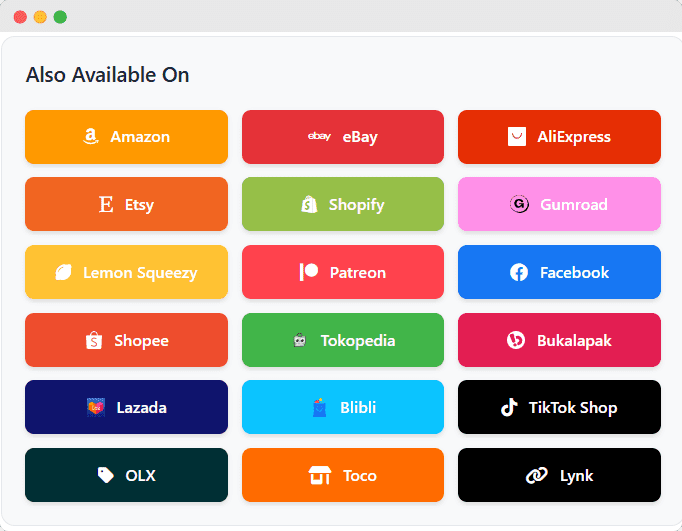
Marketplace Buttons Output
Link Tracking (UTM Parameters)
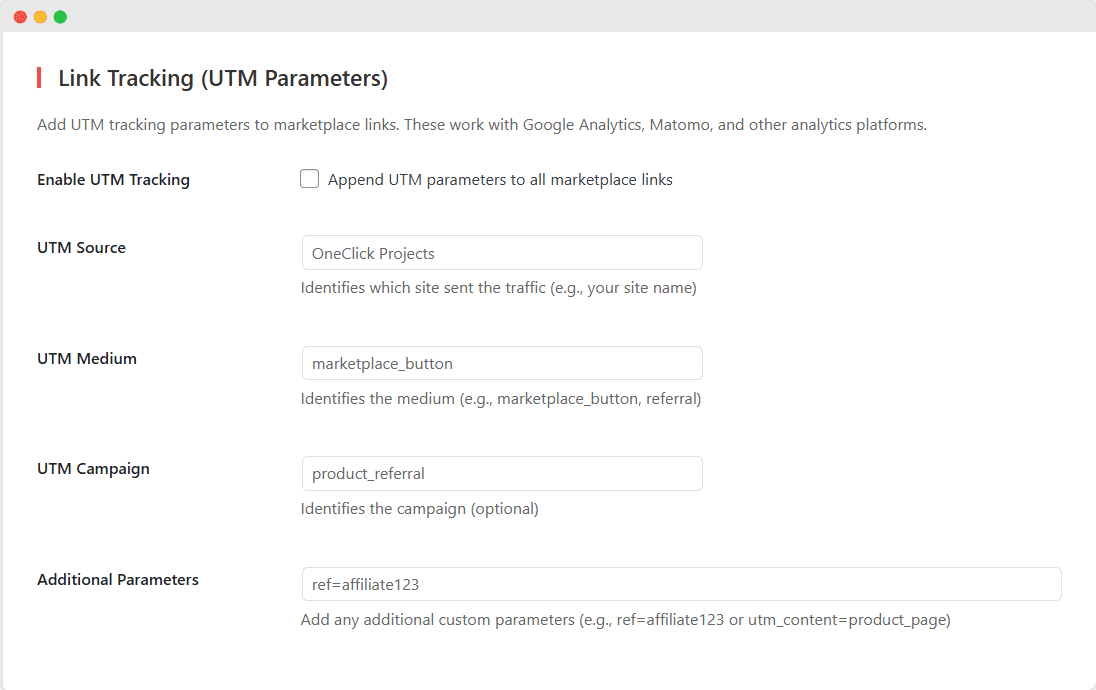
Track button clicks in Google Analytics, Matomo, or other analytics platforms.
Enable UTM Tracking
Toggle ON to append UTM parameters to all marketplace links.
UTM Parameters
| Parameter | Purpose | Example |
|---|---|---|
| UTM Source | Identifies your site | yourstore |
| UTM Medium | Identifies the link type | marketplace_button |
| UTM Campaign | Identifies the campaign | product_referral |
| Additional Parameters | Custom parameters | ref=affiliate123 |
Example Result:
https://amazon.com/dp/B123?utm_source=yourstore&utm_medium=marketplace_button&utm_campaign=product_referral
WooCommerce Element Visibility
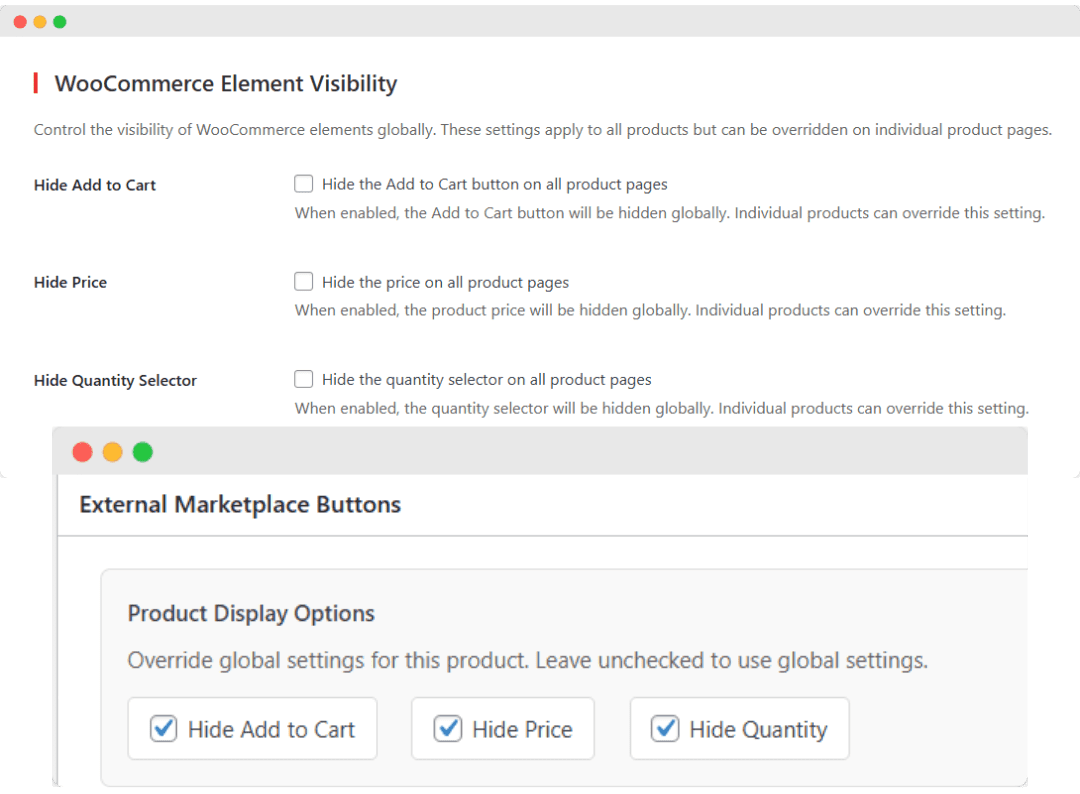
Control WooCommerce elements globally across all products.
Hide Add to Cart
- Hides the “Add to Cart” button on all product pages
- Useful for marketplace-only products
Hide Price
- Hides the product price display
- Useful when prices vary by marketplace
Hide Quantity Selector
- Hides the quantity input field
- Products become “sold individually”
Note: These global settings can be overridden on individual products. See Adding Marketplace URLs to Products.
Adding Marketplace URLs to Products

Accessing the Metabox
- Go to Products in WordPress admin
- Edit any product (or create a new one)
- Scroll down to find the External Marketplace Buttons metabox
Product Display Options
At the top of the metabox, you’ll find three checkboxes:
| Option | Effect |
|---|---|
| Hide Add to Cart | Hides the Add to Cart button for THIS product |
| Hide Price | Hides the price for THIS product |
| Hide Quantity | Hides the quantity selector for THIS product |
How Override Works:
- If checked: Setting applies to this product (overrides global)
- If unchecked: Falls back to global setting in Display tab
- Shows “(Global: ON)” indicator when global setting is enabled
Adding Marketplace URLs
- Find the marketplace in the list
- Enter the complete product URL in the input field
- Repeat for each marketplace where the product is listed
- Click Update or Publish to save
Example URLs:
Amazon: https://www.amazon.com/dp/B08N5WRWNW
eBay: https://www.ebay.com/itm/123456789
Shopee: https://shopee.co.id/product/123/456
Tokopedia: https://www.tokopedia.com/yourstore/product-name
Tips for Product URLs
- Always use the full URL including
https:// - Test each URL to ensure it works
- Use the product’s direct link, not search results
- For affiliate links, include your affiliate parameters