
There are several use cases of the External Marketplace Buttons plugin you can start with as follows:
Use Case 1: Multi-Channel Retailer
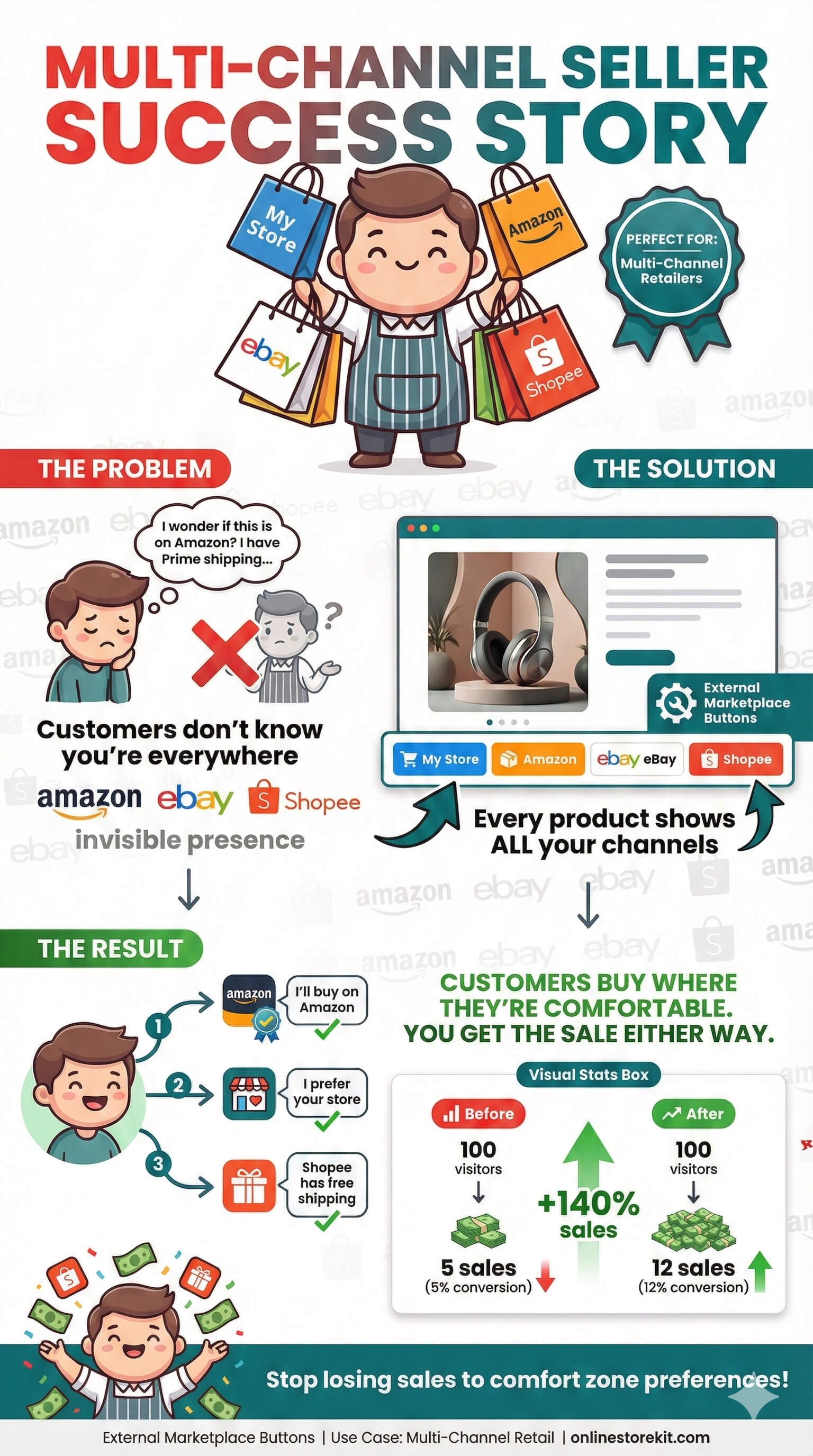
Scenario: You sell products on your WooCommerce store, Amazon, and eBay.
Setup:
- Enable Amazon and eBay marketplaces
- Set button style to “Default” for brand recognition
- Add URLs to each product
- Keep Add to Cart visible (customers can buy from you directly)
Use Case 2: Affiliate Marketing Site
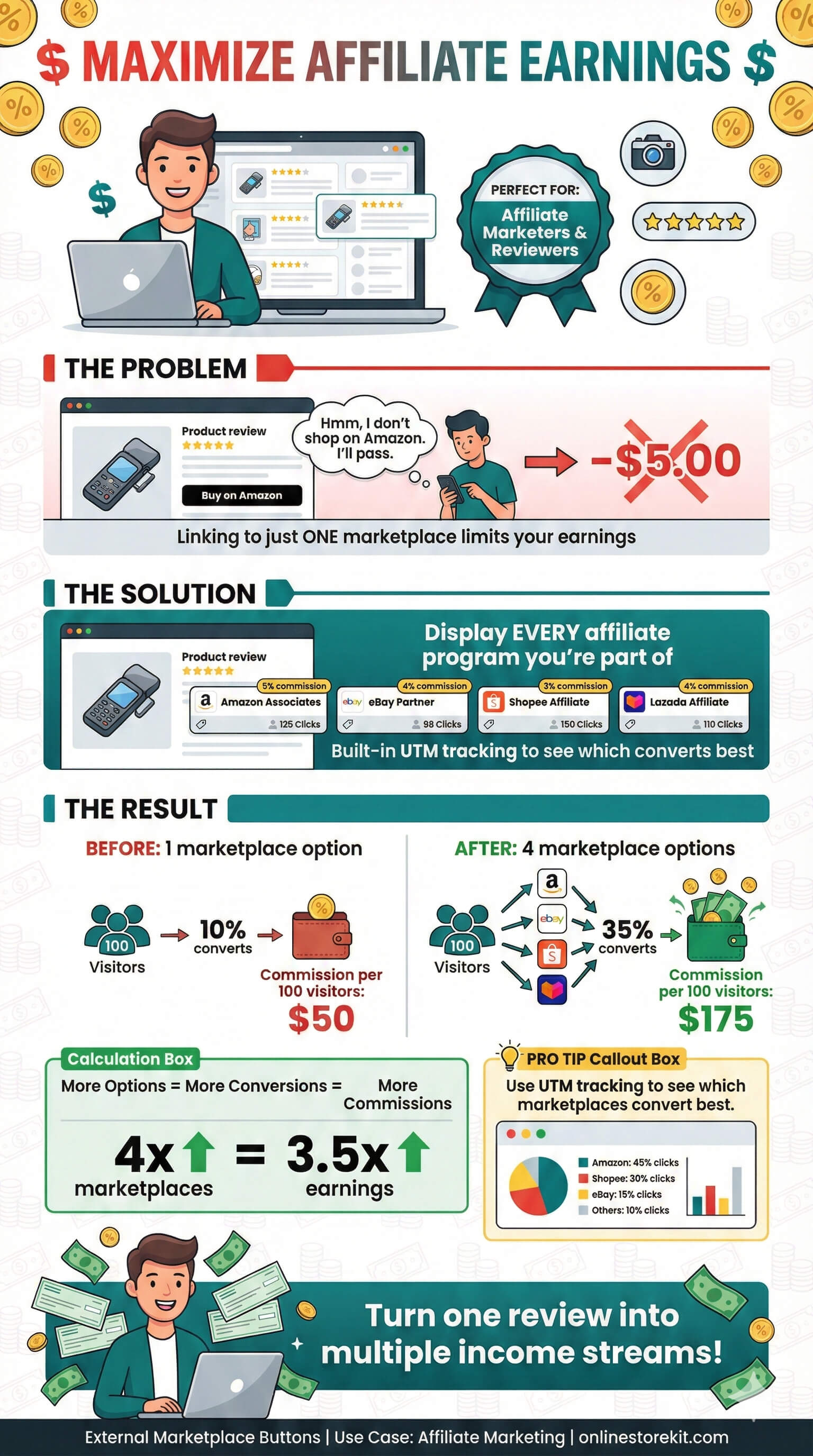
Scenario: You review products and link to various marketplaces for affiliate commissions.
Setup:
- Enable all relevant marketplaces
- Enable UTM tracking with your affiliate parameters
- Hide Add to Cart globally (no direct sales)
- Hide Price (prices vary by marketplace)
- Use affiliate URLs with tracking codes
Use Case 3: Marketplace-Only Products
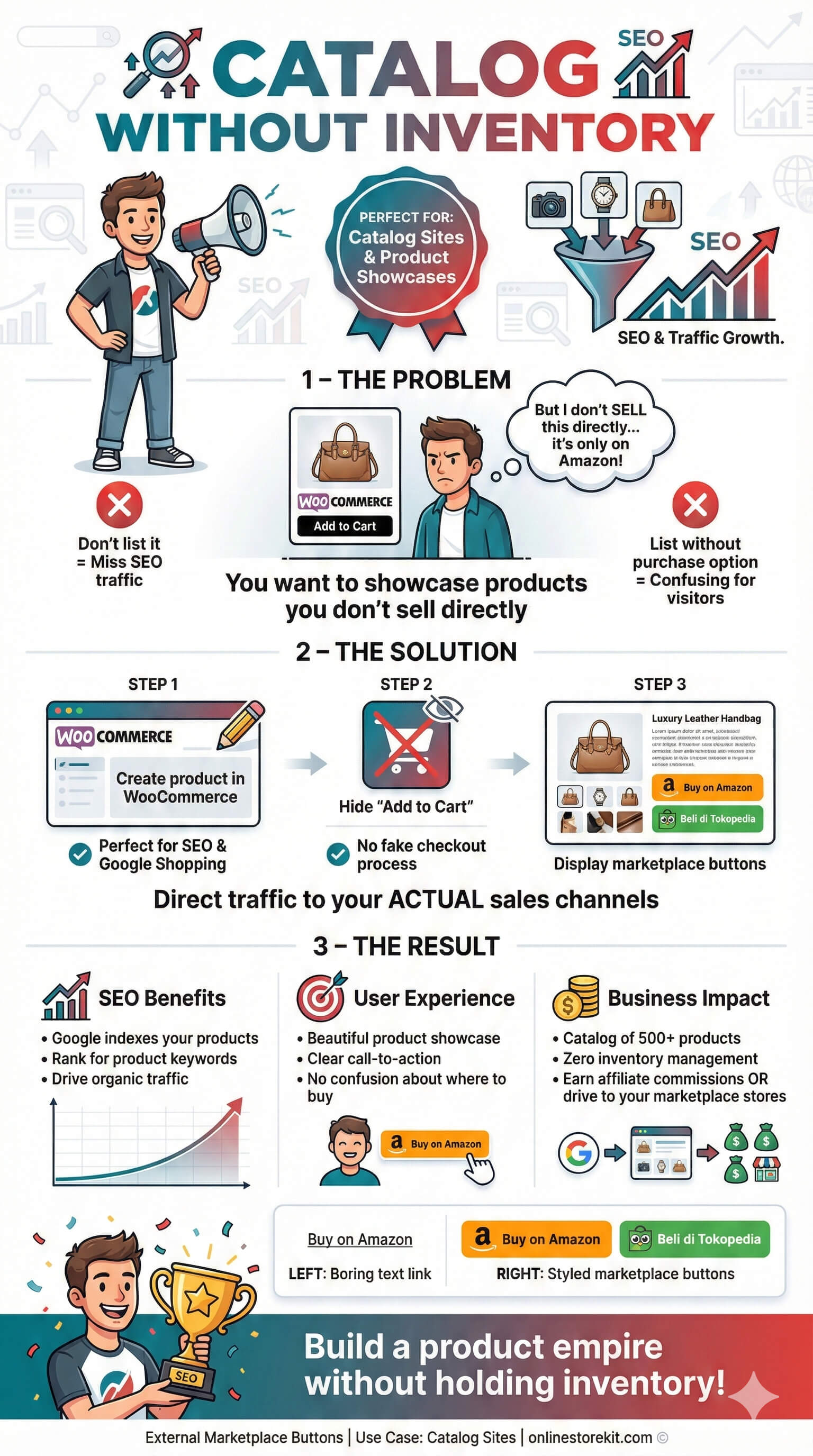
Scenario: Some products are only available on external marketplaces.
Setup:
- Create products in WooCommerce (for SEO/catalog)
- Add marketplace URLs
- Check “Hide Add to Cart” on those specific products
- Optionally hide price if it varies
Use Case 4: Regional Marketplace Focus
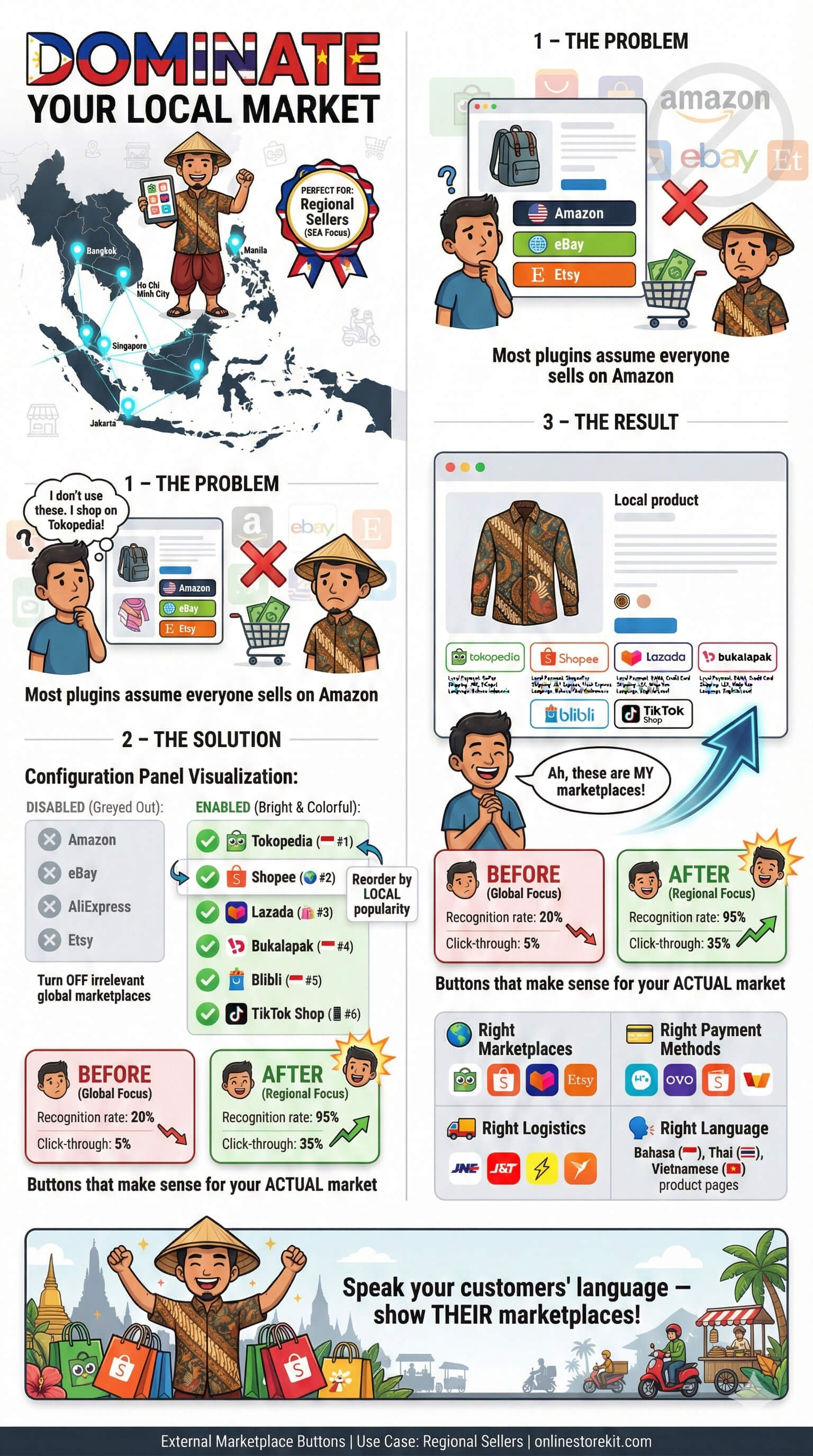
Scenario: You target Indonesian customers with local marketplaces.
Setup:
- Disable global marketplaces (Amazon, eBay)
- Enable Tokopedia, Shopee, Lazada, Bukalapak, Blibli
- Reorder by popularity in your market
- Customize button text in Indonesian
Best Practices
- Keep It Simple: Don’t enable too many marketplaces. 3-5 is usually optimal.
- Prioritize by Popularity: Put your most popular marketplace first.
- Use Consistent Styling: Match button colors to your theme for a cohesive look.
- Test All Links: Regularly verify that marketplace URLs are working.
- Track Performance: Use UTM parameters to see which marketplaces drive traffic.
- Mobile Testing: Always check how buttons look on mobile devices.
- Backup Regularly: Export settings before making major changes.